23 Nov 2020
Introduction
I found multiple articles on how to mount an Azure Storage account in Azure Databricks, but most of them refered to using the Azure Key Vault which I do not want to setup at this time. So I decided to continue my quest as I required the storage account and container to be mounted for me to read the *.sas7dbat files into a Dataframe. I also could not find clear instructions on how to use the Databricks CLI in Azure Databricks.
Prerequisites
- Azure Subscription
- Azure Storage Account with a Container ready
- Azure Databricks
Code
First we will need to generate a SAS Token, which we can achieve by following this guide by June Castillote here.
I prefer to create a new Scala Notebook for the next part, so that I can save it and remember how I achieved this in the future. With the below script we start off by creating all the required variables for the actual mounting function. For a more complete guide see below link in the External Links for the full article by Gauri Mahajan
val containerName = "<Enter Container Name Here>"
val storageAccountName = "<Enter Storage Account Here>"
val sas = "<Enter SAS Key Here>"
val config = "fs.azure.sas." + containerName+ "." + storageAccountName + ".blob.core.windows.net"
Once all the parameters is set, we can go ahead and mount the storage container into Azure Databricks. Remeber to change the mount name in the below script.
dbutils.fs.mount(
  source = "wasbs://" + containerName + "@" + storageAccountName + ".blob.core.windows.net/",
  mountPoint = "/mnt/<Enter Unique Mount Name Here>/",
  extraConfigs = Map(config -> sas))
Data Exploration
Once we have our Storage Account mounted, we can start exploring the data in these mounts. First off lets look at all of our mapped mounts.
display(dbutils.fs.mounts())
If you want to have a look at what files are in our Storage Account, you can use the below script.
dbutils.fs.ls("/mnt/<Enter Unique Mount Name Here>")
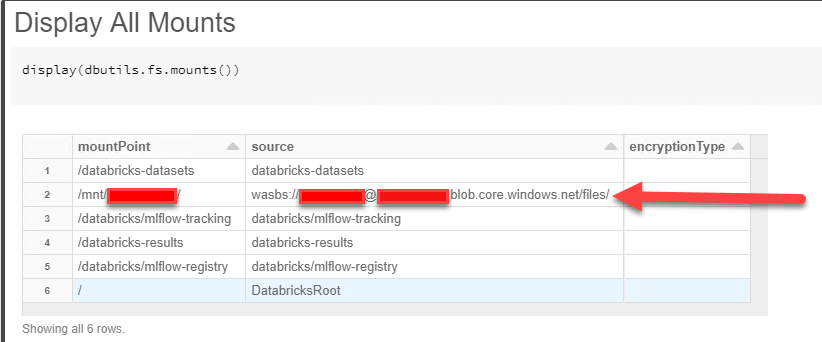
And if for any reason you want to unmount the Storage Account you can use the below script.
dbutils.fs.unmount("/mnt/<Enter Unique Mount Name Here>/")
External Links
Comprehensive Guide
Disclaimer: Content is accurate at the time of publication, however updates and new additions happen frequently which could change the accuracy or relevance. Please keep this in mind when using my content as guidelines. Please always test in a testing or development environment, I do not accept any liability for damages caused by this content.
If you liked this post, you can
share it with your followers
or
follow me on Twitter!
05 Nov 2020
Introduction
I have gotten so use to Adam Machanic’s sp_whoisactive that when we migrated our workloads to Azure Synapse I felt completely lost. So over time I started to compile my own little queries to inspect what is/was going on, it is far from perfect, but for me it was a great start. Please feel free to make changes to the project on GitHub
Installation
You should be able to just open and run the sp_synapse_queries_combined.sql script, this will “deploy” 2 Stored Procedures
*sp_synapse_queries
*sp_synapse_queries_deepdive
I wanted to add both into 1, but unfortunatly Azure Synapse does not yet allow us to create parameters in Stored Procedures with default values.
Clone or Download Here
Permissions Required
GRANT VIEW DATABASE STATE ON
GRANT EXECUTE ON sp_synapse_queries
GRANT EXECUTE ON sp_synapse_queries_deepdive
How to Use
So lets get started, all you need to do is run the below SQL command.
Ok great, what now. Well now I explain (will be shortened due to me not enjoying documentation), you will get the below output. The first results set is all the queries in the queue (YES THAT MEANS IT IS NOT DOING ANYTHING), the second result set is all the queries that is actually running at the moment.
You can also read Microsoft Docs on this, as some of the code came from there.
| Column Name |
JP’s Description |
| session_id |
Unique session id for a query |
| request_id |
Unique Query id in a session |
| login_name |
Who is running this session |
| status |
Is the query running or in a queue |
| running_time |
How long in seconds has the query been running for |
| time_in_queue |
How long was the query in a queue before it started executing |
| submit_time |
When did you press F5 |
| start_time |
When did it actually start |
| end_compile_time |
When did it finish creating the execution plan |
| end_time |
When did your query finish |
| label |
Query Label |
| command |
SQL Command that is being executed |
| blocking_session_id |
If populated something is blocking your query |
| app_name |
Application Session is coming from |
| resource_class |
Resource Class, you can read up on this |
| deepdive |
Magic statement we will be explaining |
Yes I knew you would not be able to stop thinking about the magic command, so what is it? Well essentially it is just another stored procedure called sp_whoisactive_deepdive prepopulated with the basic deep dive parameters
EXEC dbo.sp_whoisactive_deepdive @request_id = 'QID10741526', @distributions = 0, @tempdb = 0
If you run it as is, you will get 2 more result sets as below.
- The Query Steps, a nice way of looking at what step your query is busy with
- Waits, what your query has locks on and what it could be waiting on
If you want to dive even deeper, you can set the @distributions parameter to 1, this will then produce the below.
- The Query Steps on all distribution Nodes
- The Data Movement steps your query is busy with
Now when you are feeling adventurous turn on the @tempdb parameter and you will see what you query is doing to TempDB on Synapse.
External Links
GitHub Project
Disclaimer: Content is accurate at the time of publication, however updates and new additions happen frequently which could change the accuracy or relevance. Please keep this in mind when using my content as guidelines. Please always test in a testing or development environment, I do not accept any liability for damages caused by this content.
If you liked this post, you can
share it with your followers
or
follow me on Twitter!
04 Nov 2020
Introduction
Since the release of Microsoft SQL Server 2017, Microsoft has introduced the ability to execute Python code direct from within the SQL Server environement. Now my first question was why? Well over time I came to the conclusion that SQL Server is not always the best/only tool for the job and thus this feature allows us to perform more complex and complete functions for example string distance functions in SQL Server. We perform many of these on a daily basis like JaroWinkler, which works great except that I can do it even quicker in Python as it is a RBAR operation.
You can read more on this at Docs
Code
Create Table for Demo
Lets start off by creating our input dataset, in most cases you would already have a dataset in mind for this. If that is the case you can skip the next 2 steps.
CREATE TABLE Employees
(
	Id INT IDENTITY(1,1) PRIMARY KEY,
	Firstname varchar(50),
	Surname varchar(50),
	EmailAddress varchar(50)
)
Insert Records into table
Insert some dummy data for processing.
INSERT INTO Employees VALUES ('JP','Voogt','jvoogt1@outlook.com')
INSERT INTO Employees VALUES ('John','Smith','john.smith@gmail.com')
INSERT INTO Employees VALUES ('Faf','De Klerk','faffie@webmail.com')
Python script
Note that I will pass my data(SQL Query) from SQL Server to Python using my_input_data, and OutputDataSet as my final output. You will need to know what columns and datatypes you will be expecting back from Python.
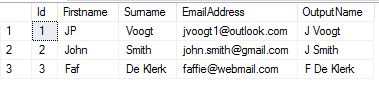
In this example we will use pandas to take the first letter of the Firstname and the Surname and combine them to create our OutputName column. This is just an easy example of how to perform string manipulation operations in Python
DECLARE @NewScript NVARCHAR(MAX)
SET @NewScript  = N'
import pandas as pd

#Read Data From Input @input_data_1
df = my_input_data

#Perform String Manipulation
df["OutputName"] = df.apply(lambda x : x.Firstname[0] + " " + x.Surname, axis=1)

#Assign pandas.DataFrame to our spesified OutputDataSet
OutputDataSet = df
'
EXEC sp_execute_external_script
This is now where it all comes together, We indicate that we want to use Python, provide the input script, the input data and specify what the expected output will look like.
EXEC sp_execute_external_script
 @language = N'Python'
, @Script = @NewScript
, @input_data_1 = N'SELECT * FROM Employees'
, @input_data_1_name = N'my_input_data'
WITH RESULT SETS ((Id int, Firstname varchar(50), Surname varchar(50), EmailAddress varchar(50), OutputName varchar(50)))
Results
Conclusion
Disclaimer: Content is accurate at the time of publication, however updates and new additions happen frequently which could change the accuracy or relevance. Please keep this in mind when using my content as guidelines. Please always test in a testing or development environment, I do not accept any liability for damages caused by this content.
If you liked this post, you can
share it with your followers
or
follow me on Twitter!
03 Nov 2020
Introduction
Working with big datasets has introduced many more technologies for the average Data Analyst to learn and understand. I have recently started to work more in Azure Databricks to enable our processes to be considered more optimized. For example, I do a lot of string distance calculations on my datasets and, SQL Server or even Azure Synapse is not always the best solution for this. In the past, we created these functions as CLR’s and processed the data directly in SQL, but in time our data grew even more and, this became harder and harder. Moving this workload to Azure Databrick saved us hours of processing time, but introduced a new technology barrier that we had to learn and overcome.
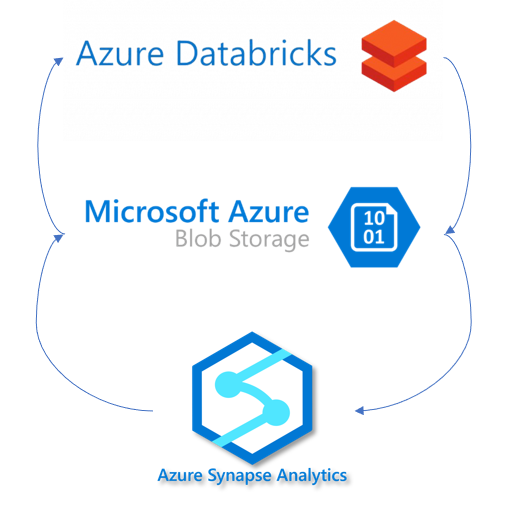
Below I go through the basic outline of what is required to load data from Azure Synapse to Azure Databricks and push down to Synapse again once done.
- Configure your BLOB storage access, this can be achieved in many other ways. Read more here
- Create the JDBC connection string and BLOB connection string
- Read the data from Azure Synapse into a Spark Dataframe using spark.read function
- Write transformed data back into Azure Synapse with spark.write
Code
spark.conf.set(
  "fs.azure.account.key.<BLOBSTORAGENAME>.blob.core.windows.net",
  "<ACCESSKEY>")
jdbc = "jdbc:sqlserver://<YOURSERVERNAME>.database.windows.net:1433;database=<YOURDATABASENAME>;user=<SQLUSERNAME>@<YOURDATABASENAME>;password=<PASSWORD>;encrypt=true;trustServerCertificate=false;hostNameInCertificate=*.database.windows.net;loginTimeout=30;"
blob = "wasbs://<BLOBCONTAINER>@<BLOBSTORAGENAME>.blob.core.windows.net/"
READ DATA FROM SYNAPSE INTO DATAFRAME
df = spark.read \
  .format("com.databricks.spark.sqldw") \
  .option("url", jdbc) \
  .option("tempDir", blob) \
  .option("forwardSparkAzureStorageCredentials", "true") \
  .option("Query", "SELECT TOP 1000 * FROM <> ORDER BY NEWID()") \
  .load()
WRITE DATA FROM DATAFRAME BACK TO AZURE SYNAPSE
df.write \
  .format("com.databricks.spark.sqldw") \
  .option("url", jdbc) \
  .option("forwardSparkAzureStorageCredentials", "true") \
  .option("dbTable", "YOURTABLENAME") \
  .option("tempDir", blob) \
  .mode("overwrite") \
  .save()
Disclaimer: Content is accurate at the time of publication, however updates and new additions happen frequently which could change the accuracy or relevance. Please keep this in mind when using my content as guidelines. Please always test in a testing or development environment, I do not accept any liability for damages caused by this content.
If you liked this post, you can
share it with your followers
or
follow me on Twitter!
02 Nov 2020
Introduction
I found that some of us repeat the same processes over and over again where other people might never need to perform a specified task which I would consider basic, thus I want to share with you how I approach removing of duplicate records in my data. Now if you are lucky enough that the entire row is a complete duplicate then you can just go ahead and slap a DISTINCT in your query and your problem should be gone. You will have to be mindful of the limitations here as it doesn’t support long text fields as per Microsoft Docs
I Prefer to rather decide what makes my records distinct and act accordingly.
Remove Duplicate Records for Reporting
Description
When removing duplicates you will have to decide what makes your record unique, could it be a merchant id or even a social security number? I Like to go with the CTE and ROW_NUMBER approach when removing duplicates from me datasets. The only drawback here is, if you do not want the new column you will have to specify the required columns when you select from the CTE
Code
WITH CTE
AS
(
    SELECT  *
            , ROW_NUMBER() OVER(PARTITION BY [<WHAT COLUMN/S MAKE MY RECORD UNIQUE>] ORDER BY [<YOUR PREFERED ORDER>]) RN
    FROM    [myTable]
)
SELECT  *
FROM    CTE
WHERE   RN = 1
Remove Duplicate Records From a Table
Description
Sometimes you are not just removing duplicates for reporting purposes and you want to delete the duplicates from the actual table. SQL Server allows this awesome trick where you can write your logic in a CTE and then DELETE records based on the CTE logic as per the below example. Here I delete all records that occurred more than once.
Code
WITH CTE
AS
(
    SELECT  *
            , ROW_NUMBER() OVER(PARTITION BY [<WHAT COLUMN/S MAKE MY RECORD UNIQUE>] ORDER BY [<YOUR PREFERED ORDER>]) RN
    FROM    [myTable]
)
DELETE FROM CTE
WHERE   RN != 1
Disclaimer: Content is accurate at the time of publication, however updates and new additions happen frequently which could change the accuracy or relevance. Please keep this in mind when using my content as guidelines. Please always test in a testing or development environment, I do not accept any liability for damages caused by this content.
If you liked this post, you can
share it with your followers
or
follow me on Twitter!
